Introduction
You've nailed the quote. The client accepted it. You did the work—quality job, on time, no dramas. Now it's time to get paid. So what do you do?
If you're like most tradies, you open a completely different app (or worse, a Word template), retype the client's name and address, copy across every line item, double-check the totals, format it to look half-decent, and email it off. By the time you're done, 20 minutes have evaporated and you're already annoyed.
That's double-handling, and it's one of the biggest hidden time-wasters in the trade industry. You've already done the work of creating the quote—why should you have to do it all over again for the invoice?
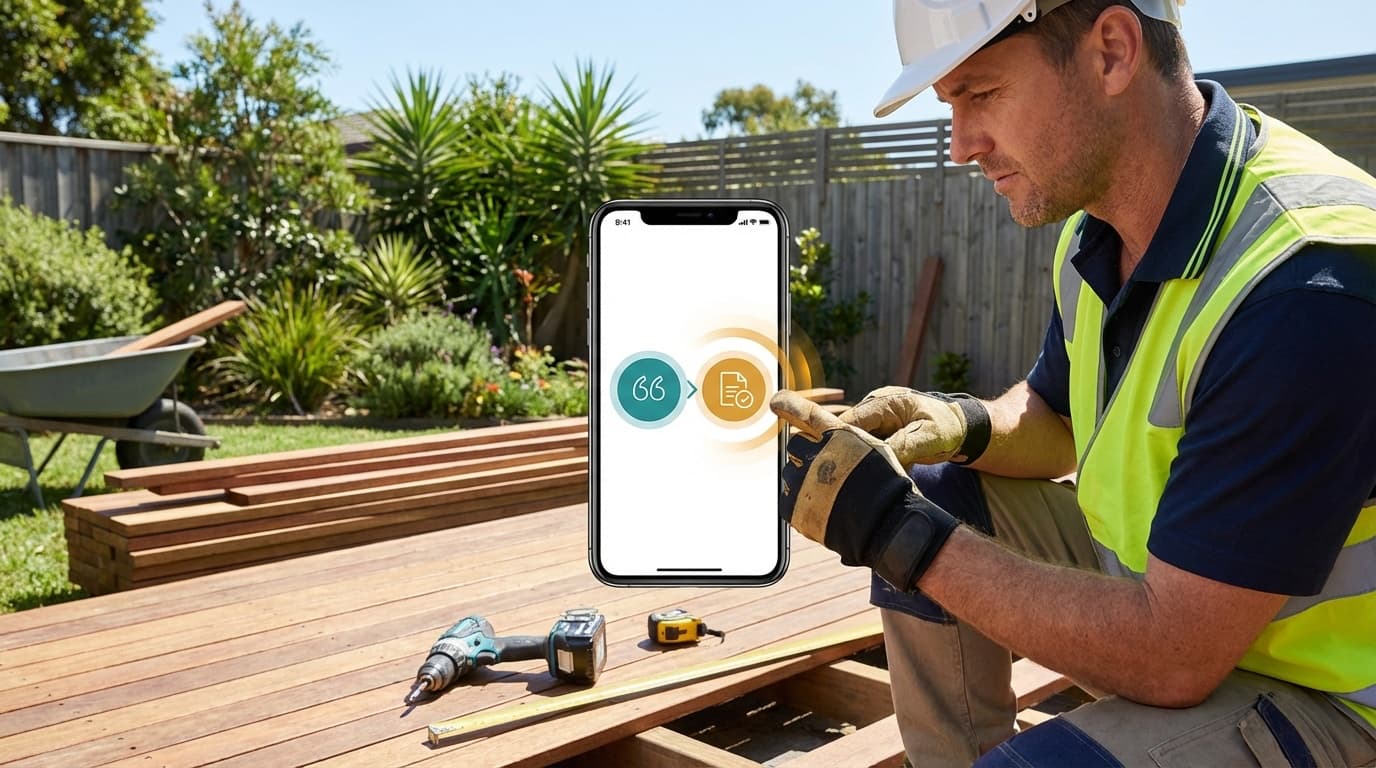
With QuoteMate, you don't. One tap converts an accepted quote into a professional invoice. All the client details, line items, materials, and pricing carry across automatically. In this article, we'll break down exactly how it works and why it's saving Australian tradies hours every single week.
The Double-Handling Problem
Let's be honest about what double-handling actually involves. For a single job, converting a quote to an invoice manually means:
- Re-entering the client's name, address, phone, and email
- Copying each material line item and its cost
- Re-entering labour hours and rates
- Recalculating GST
- Adding your payment details
- Formatting everything so it looks professional
- Saving, exporting to PDF, and emailing
That's 15-25 minutes per job. If you're completing 15-20 jobs a month, you're spending 5-8 hours a month on pure data re-entry. That's an entire day of billable work wasted on copying information from one place to another.
Where Errors Creep In
The other problem with manual re-entry is mistakes. When you're tired after a day on the tools and copying numbers between systems:
- A $1,850 line item becomes $1,580 (transposition error)
- You forget to include a variation the client approved mid-job
- GST gets calculated on the old total instead of the updated one
- The client's email address has a typo and the invoice disappears into the void
Each of these errors costs you money, time, or both.
How One-Tap Conversion Works
QuoteMate's quote-to-invoice conversion is built to eliminate every bit of that friction. Here's the step-by-step:
Step 1: The Quote Gets Accepted
When a client accepts your quote, you mark it as "Accepted" in the app. This signals that the scope and pricing are locked in.
Step 2: Do the Work
Get on the tools. If anything changes during the job—a variation, an extra, materials swapped out—you can note it in the app, but you don't have to worry about it right now.
Step 3: Tap "Convert to Invoice"
Once the job is complete, open the accepted quote and tap the "Convert to Invoice" button. That's it. One tap.
Step 4: Everything Carries Across
The new invoice is pre-populated with:
- Client details — name, address, contact info
- All line items — materials, labour, extras
- Pricing — unit costs, quantities, totals
- GST — automatically calculated on the new invoice
- Quote reference — linked back to the original quote number
- Your business details — logo, ABN, licence, payment info
Step 5: Review and Adjust
Before sending, you get a chance to review. This is where you:
- Add any variations that came up during the job
- Remove items that weren't used (e.g., materials returned to Bunnings)
- Adjust quantities if the actual usage differed from the estimate
- Set payment terms (due on receipt, 7 days, 14 days, 30 days)
Step 6: Send
Hit send. A professional PDF invoice lands in your client's inbox. Total time from "job done" to "invoice sent"? Under a minute.
Real-World Scenarios
The Straightforward Job
You quoted a timber fence at $4,200. The job went exactly to plan. You open the quote, tap convert, and send the invoice for $4,200. No changes needed. Done in 15 seconds.
The Job with Variations
You quoted a deck build at $8,500. During demolition, you discovered the old subframe was rotten and needed replacing—an extra $1,200 the client approved via text. When you convert the quote to an invoice, you add a new line item: "Additional: Remove and replace rotten subframe — $1,200." The invoice total updates to $9,700. GST recalculates automatically.
The Multi-Stage Job
You quoted a bathroom reno at $22,000 with progress payments. You already invoiced a 30% deposit ($6,600) at the start. Now you're at the halfway mark. You create a second invoice from the same quote for the 40% progress payment ($8,800). QuoteMate links both invoices to the original quote, and the payment tracking shows the remaining balance.
Why the Quote Reference Matters
Every invoice created from a quote includes the original quote number. This might seem like a small detail, but it matters for three reasons:
1. Dispute Prevention
If a client questions a charge, you can say, "That line item was in the original quote QM-0042, which you accepted on 15 January." Having that paper trail eliminates he-said-she-said arguments.
2. Your Records
When you're doing your books or meeting with your accountant, being able to trace every invoice back to its original quote makes reconciliation a breeze.
3. Client Confidence
Clients appreciate consistency. When the invoice matches the quote they accepted—same format, same line items, same reference number—it builds trust. They know exactly what they're paying for and why.
The Bigger Picture: A Unified Workflow
The one-tap conversion isn't just a time-saver—it's the glue that connects your entire business process:
Quote → Acceptance → Work → Invoice → Payment
When all of these steps happen in one app, nothing falls through the cracks:
- Every accepted quote eventually becomes an invoice
- Every invoice is tracked until it's paid
- Every job has a complete paper trail from first estimate to final payment
Compare that to the old way: quotes in one app, invoices in another, payments tracked in a spreadsheet (or not tracked at all), and important details scattered across text messages, emails, and scraps of paper.
Frequently Asked Questions
Q: Can I edit the invoice after converting from a quote?
A: Absolutely. The conversion pre-populates everything, but you have full control to add, remove, or modify line items before sending. It's a starting point, not a locked document.
Q: What if I need to create multiple invoices from one quote?
A: QuoteMate supports this. For jobs with progress payments, you can create multiple invoices linked to the same original quote—each for a different stage or amount.
Q: Does the client see the original quote number on the invoice?
A: Yes. The invoice includes a reference to the original quote, which helps the client match the invoice to the work they approved. It's a professional touch that prevents confusion.
Q: Can I still create standalone invoices without a quote?
A: Yes. The one-tap conversion is there for efficiency, but you can always create invoices from scratch for jobs that didn't start as QuoteMate quotes.
Key Takeaways
- One tap, not 20 minutes: Convert an accepted quote to an invoice instantly with all details pre-populated.
- Zero re-entry errors: Client details, line items, and pricing carry across automatically.
- Easy variation handling: Add extras or adjust quantities before sending.
- Full traceability: Every invoice links back to its original quote for dispute prevention and clean records.
- Progress payments supported: Create multiple invoices from a single quote for staged billing.
Conclusion
Double-handling your paperwork is one of those problems that feels small on any individual job but adds up to days of lost time over a year. It's the kind of admin work that has no business eating into your evenings and weekends.
The one-tap quote-to-invoice conversion in QuoteMate exists for one reason: to let you get back to what you're good at. Finish the job, tap the button, send the invoice, get paid. That's the workflow every tradie deserves.
Ready to Save Hours on Quoting?
QuoteMate helps Australian tradies create professional quotes in under 5 minutes with AI-powered estimation and real-time Bunnings pricing.
Try free for 7 days - no credit card required!
Get Started with QuoteMate | No credit card required